




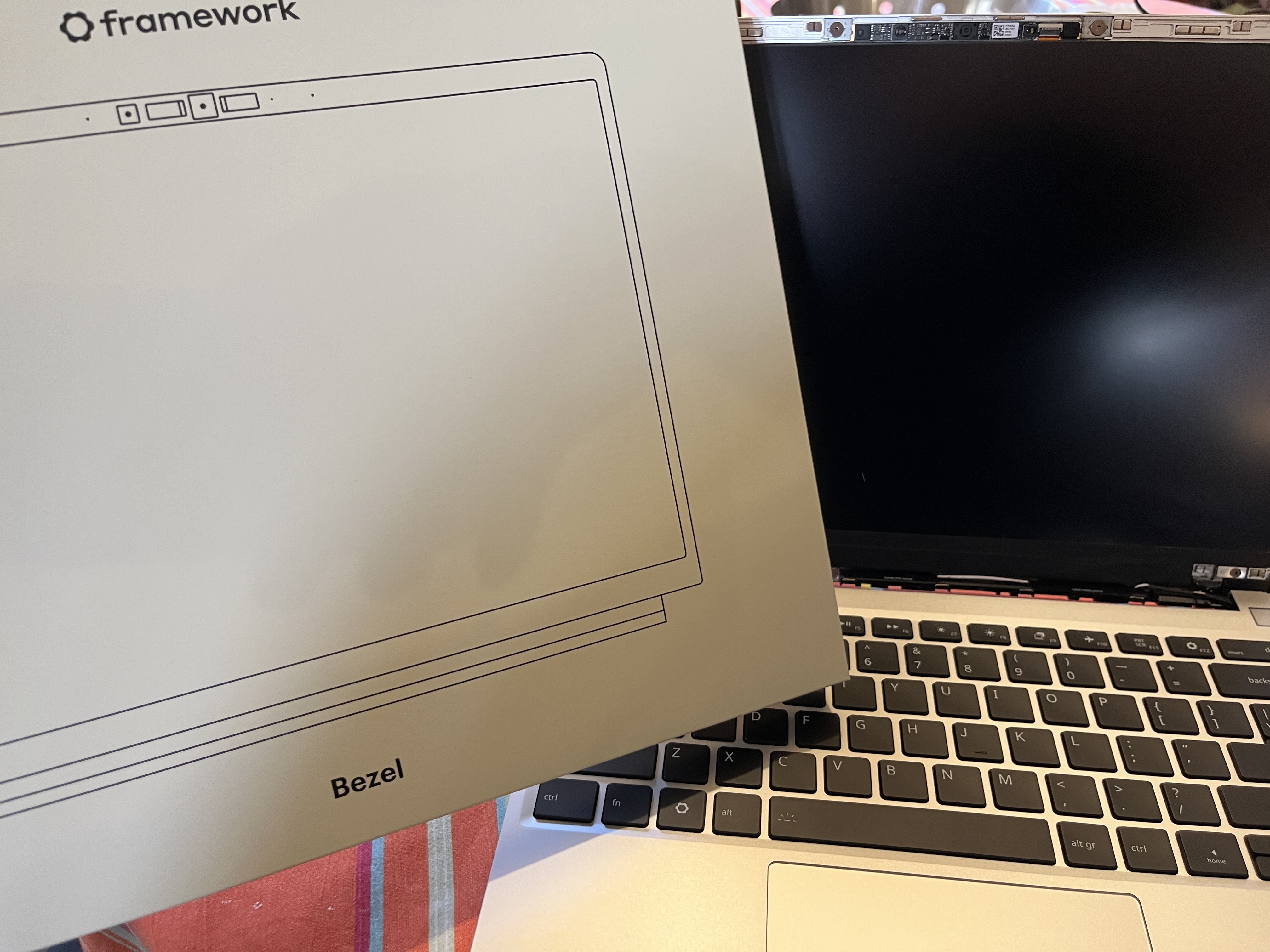
There is a unique kind of magic in putting together your own computer. But building a laptop? That takes the experience to a whole new level. I recently got my hands on the DIY Edition of the Framework Laptop 13” powered by an AMD Ryzen processor, and let me tell you: the build process was an absolute blast.
From snapping the modular expansion cards into place to tightening the last captive screw on the chassis, every step felt like a victory. No glue, no proprietary roadblocks—just a beautifully engineered machine that felt truly like my laptop by the time I was done. But hardware is only half the battle. To make this AMD Ryzen beast really sing, I needed the right operating system.
Enter Omarchy.
Why Omarchy?
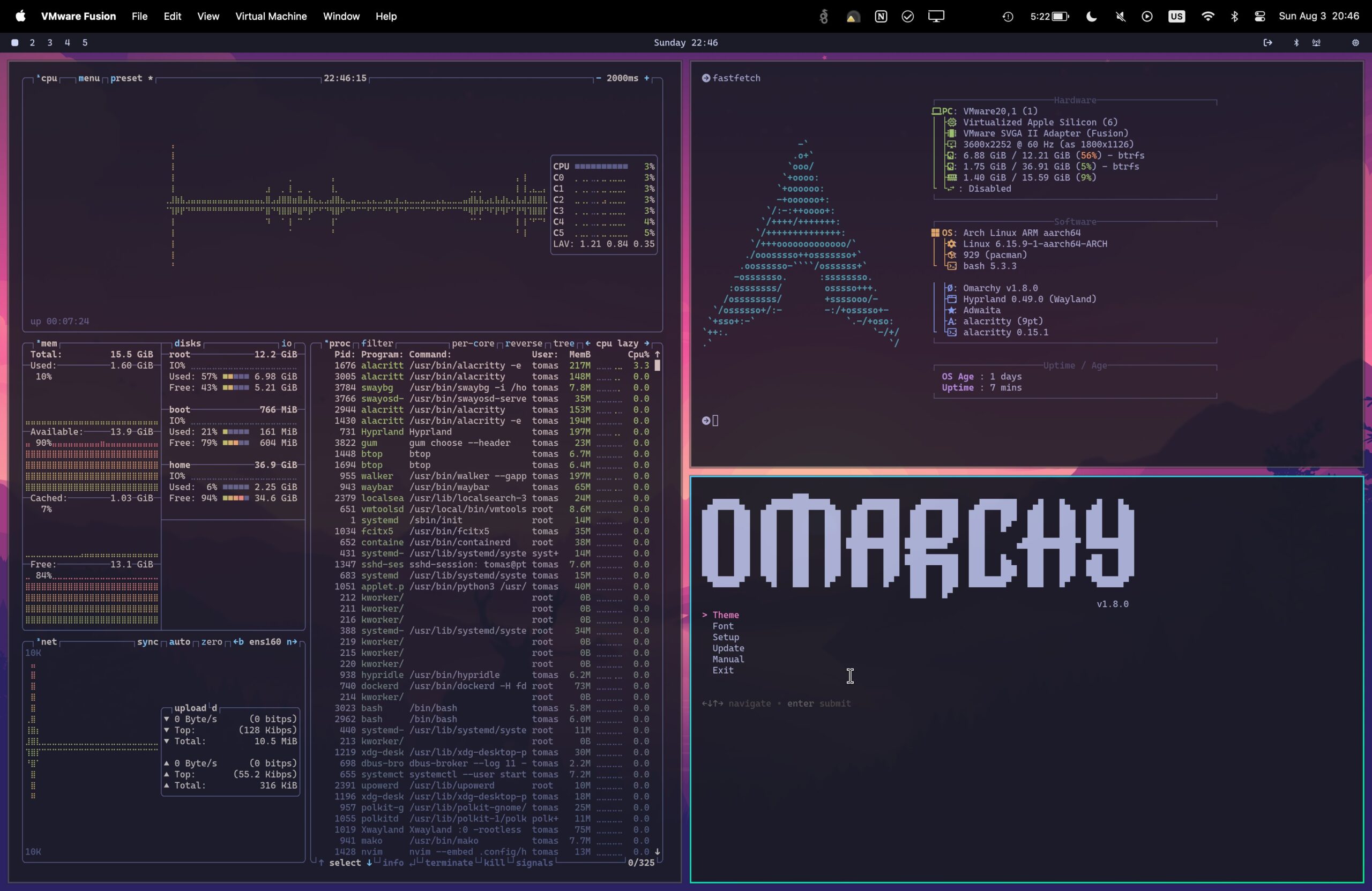
If you haven’t heard of Omarchy yet, you’re missing out. Created by David Heinemeier Hansson (DHH), it’s a brilliant, opinionated Linux distribution based on Arch Linux and the Hyprland tiling window manager. Instead of spending an entire weekend writing config files to make Arch usable, Omarchy gives you a gorgeous, keyboard-driven developer setup right out of the box. Zero bloat, beautiful aesthetics, and lightning-fast performance.
But as with any great Linux adventure, getting it installed required a little bit of a hack.
The “Aha!” Moment: Conquering Secure Boot
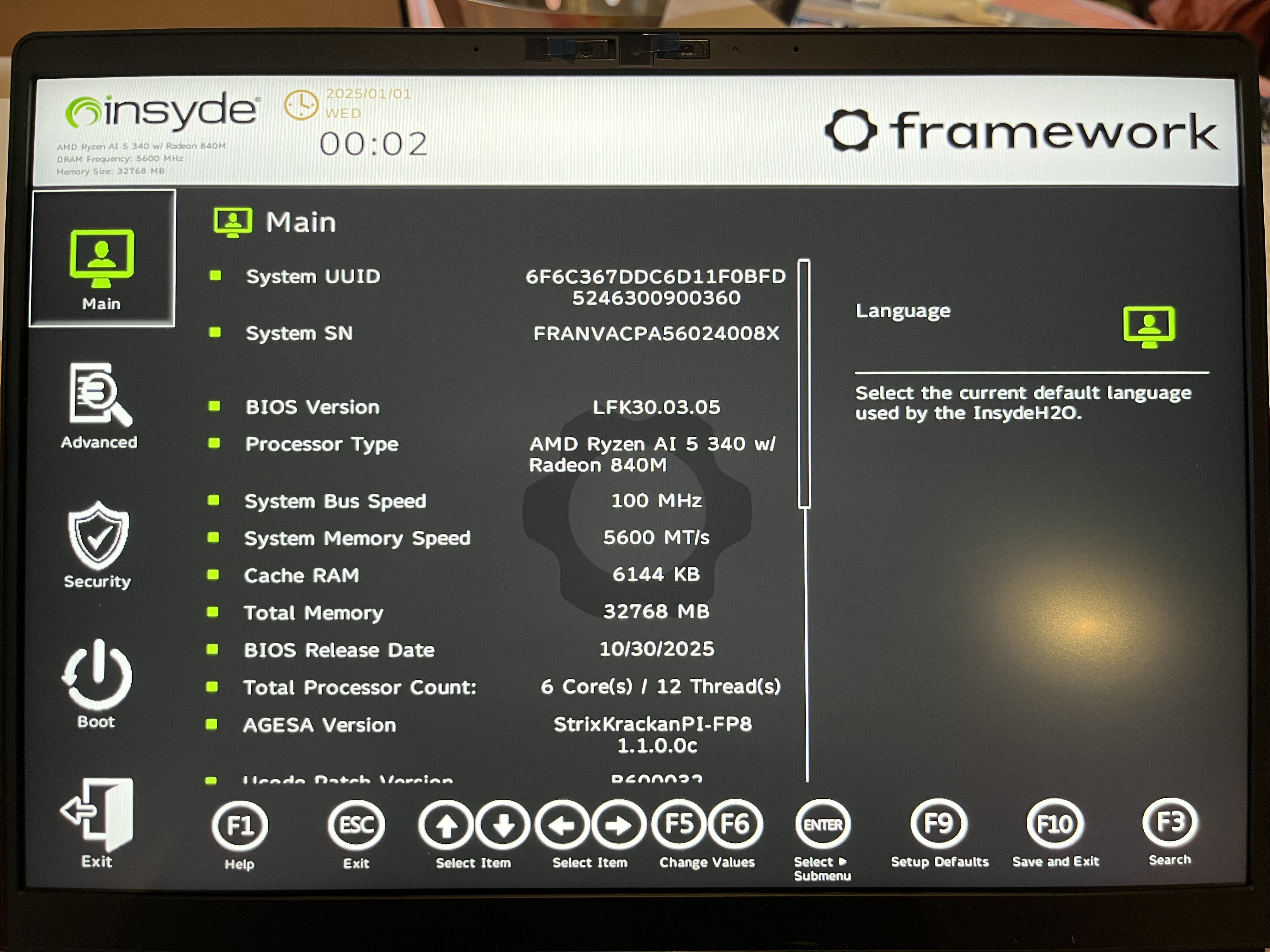
Omarchy, like many independent Linux distributions, requires you to disable Secure Boot in the BIOS before installation. Simple enough, right? I mashed the F2 key on boot, navigated to the Security tab in the Framework’s BIOS, and found the “Force Secure Boot” toggle.
Except… it was grayed out. Untouchable. Un-toggleable.
I spent a good twenty minutes scratching my head, wondering if I had missed a firmware update or if my glorious new laptop was locking me out. After some deep-dive research, I finally discovered the secret handshake.
If you are going down this same road and find yourself locked out of the Secure Boot settings, here is exactly how you bypass it:
- Enter the BIOS: Reboot your Framework and tap
F2to enter the BIOS setup. - Navigate to the Security Tab: Use your arrow keys to slide over to the Security section.
- Set a Master/Supervisor Password: This is the magic key! Find the option to set a Supervisor or Master Password. You can make it something simple for now (like
1234), but do not forget it. - Unlock the Toggle: As soon as you set that password and hit enter, the BIOS elevates your privileges. Suddenly, that stubborn “Secure Boot” option is no longer grayed out.
- Disable Secure Boot: Toggle it off.
- Clear the Password (Optional but recommended): If you don’t want a BIOS password slowing you down every time you tweak your settings, you can now go back and remove it (usually by choosing to change the password, entering your current one, and leaving the “new password” fields blank). Secure Boot will remain disabled!
- Save and Exit: Hit
F10to save your changes and reboot.
Booting Into the Future
With Secure Boot out of the way, the Omarchy ISO booted up flawlessly. The installation was incredibly smooth, and within minutes, I was staring at a stunning Hyprland desktop.
The marriage of the Framework 13’s crisp 3:2 display, the raw multi-core power of the AMD Ryzen chip, and the streamlined, keyboard-centric workflow of Omarchy is nothing short of incredible. Super + Space to launch apps, a blazingly fast terminal ready to go, and a system that feels completely tailored to productivity.
If you’re on the fence about picking up a Framework or diving into the world of Arch-based tiling window managers, consider this your sign. Yes, you might have to wrestle with a BIOS password for a hot second, but the reward on the other side? A modular, lightning-fast machine that is 100% yours.
Happy hacking!
See Post 9